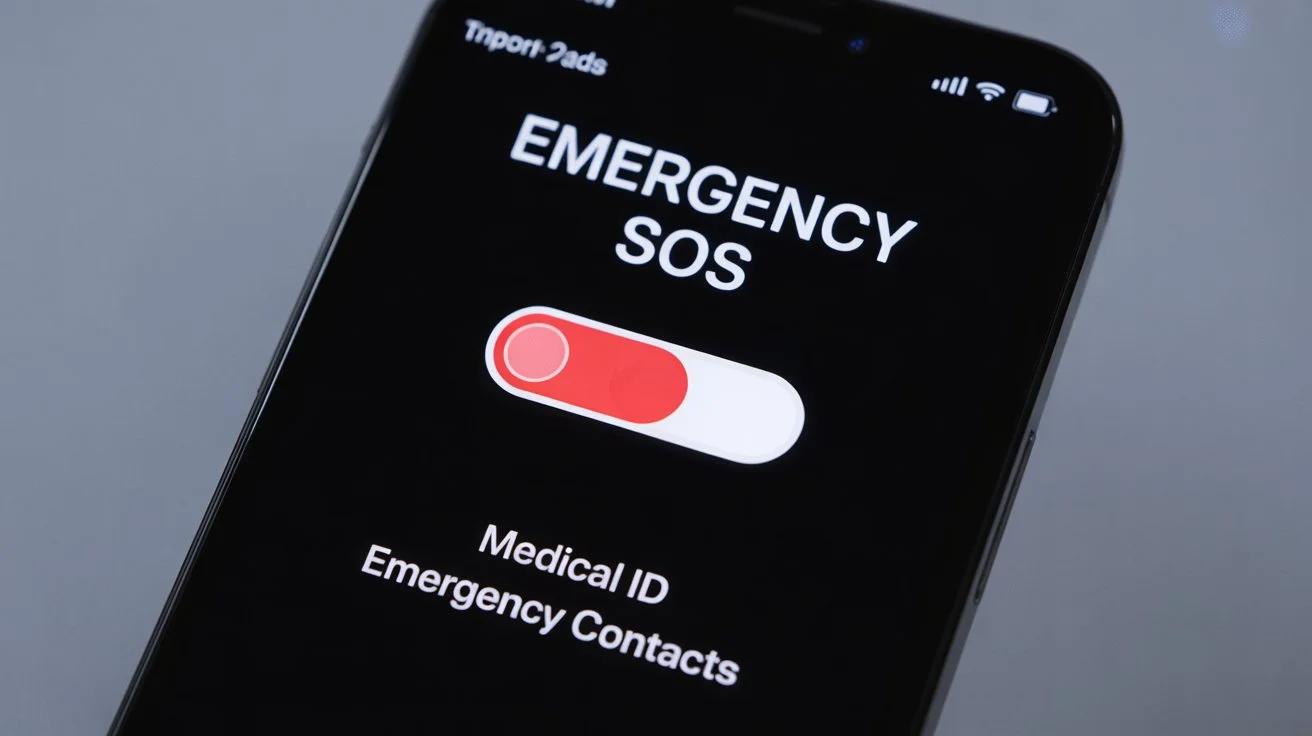
When your iPhone suddenly shows “SOS” in the top-right corner, it can feel a little scary.
Most people instantly think something is wrong with their phone—or worse, that it means an emergency is happening.
But don’t worry. That tiny three-letter signal actually has a simple meaning and is designed to help you, not stress you out.
Before we break it all down, here’s the quick and easy answer you’re looking for.
⚡ Quick Answer
When you see 🚀what does sos mean on iphone🚀 it means your iPhone isn’t connected to your regular cellular network—but it can still make emergency calls like 911, 15, or your country’s emergency number. It does not mean your phone is broken.
📱 Why Your iPhone Shows “SOS”
Your iPhone uses “SOS” as a universal emergency symbol. When it appears, your phone can’t connect to your carrier for normal calls, texts, or mobile data.
But it can still connect to any available network for emergency services.
Think of it as Apple’s way of saying:
“You don’t have service, but if you need help—we’ve got your back.”
You may see SOS in these spots:
- Upper-right corner (where signal bars normally appear)
- On the Lock Screen
- On the Control Center status bar
🔍 What Causes the SOS Indicator to Appear?
This symbol usually pops up due to issues related to your network, SIM, or coverage area. Here are the most common reasons:
1. Weak or No Network Signal
If you’re in a remote area—mountains, deserts, outskirts, or underground spaces—your carrier’s signal may drop completely.
2. Carrier Outage
Sometimes the issue is on your carrier’s end. A temporary outage can stop your iPhone from connecting normally.
3. Airplane Mode Glitches
Turning Airplane Mode on and off too quickly may confuse your network settings.
4. SIM Card Issues
A damaged, loose, or unregistered SIM can prevent your device from connecting to your carrier.
5. Network Settings Misconfiguration
Incorrect settings, old carrier updates, or corrupted network files can trigger the SOS status.
6. Traveling or Roaming Problems
Traveling internationally? Your carrier may not support roaming in that region.
🧩 Understanding the Meaning of “SOS” on iPhone
“SOS” is actually a global emergency symbol—not the “Save Our Souls” myth people think it stands for.
On your iPhone, it means:
- You can’t use calls, texts, or mobile data normally
- You can make emergency calls
- Your device is actively searching for any network that allows emergency calls
- Your phone hardware is fine—it’s a network issue, not a device issue
This feature is part of Apple’s Emergency SOS system, designed to work even in low-signal situations.
🆘 What You Can Still Do in SOS Mode
Apple ensures that even if your network fails, your phone isn’t useless.
In SOS mode, you can still:
✔ Call emergency services
✔ Share your Medical ID (if enabled)
✔ Trigger Emergency SOS with side-button shortcuts
✔ Use Wi-Fi if connected
✔ Access all apps that don’t need cellular data
🔧 How to Fix SOS on iPhone (Fast & Simple Solutions)
Below are tried-and-tested solutions that usually fix the SOS status instantly.
1. Toggle Airplane Mode
This resets your radio signals.
Steps:
- Swipe into Control Center
- Turn Airplane Mode ON
- Wait 5 seconds
- Turn it OFF
Often, the signal returns immediately.
2. Restart Your iPhone
A simple reboot can fix temporary network glitches.
3. Check for Carrier Updates
Outdated carrier settings can interfere with your connection.
Go to:Settings → General → About
If an update appears, install it.
4. Reinsert Your SIM Card
A loose SIM can cut your network off.
Steps:
- Power off your phone
- Remove SIM tray
- Clean the SIM gently
- Reinsert
- Restart device
5. Reset Network Settings
This clears old or corrupted network data.
Go to:Settings → General → Transfer or Reset → Reset → Reset Network Settings
Don’t worry—this doesn’t delete photos or apps.
6. Move to an Area With Better Coverage
If you’re in an elevator, basement, or rural location, step outdoors or near windows.
7. Contact Your Carrier
If nothing works, your SIM may be:
- Not registered
- Deactivated
- Blocked
- Not supported in the area you’re in
Your carrier can fix this in minutes.
🌍 SOS vs SOS Only What’s the Difference?
Apple uses two similar indicators:
🔹 SOS
You can reach emergency services, but your SIM is still recognized.
🔹 SOS Only
Your phone detects no carrier signal at all.
Often seen while traveling internationally.
Both allow emergency calls, but SOS Only usually lasts longer and may need manual fixing.
🚨 What About SOS Flashing During Emergencies?
If you activate Emergency SOS by mistake (e.g., pressing the side button too many times), your phone may:
- Vibrate
- Flash
- Start a countdown
This is Apple’s emergency call feature—not a network signal feature.
📡 Can Wi Fi Work When Your Phone Says SOS?
Yes!
If you are connected to Wi-Fi:
- You can use WhatsApp, Messenger, and other online apps
- iMessage will send as blue if Wi-Fi is available
- FaceTime works normally
- You can browse the internet
Just remember:
Regular SMS and calls require cellular service.
🧭 Does SOS Affect Location Services?
Your GPS still works because GPS is satellite-based, not dependent on your mobile network.
Apps like Maps, Uber, or Find My iPhone may still work—as long as you have Wi-Fi.
🧨 Myth Busting: Popular Misconceptions About “SOS” on iPhone
❌ “It means my phone is hacked.”
Nope. It’s a network issue, not a security threat.
❌ “My phone is damaged.”
Your hardware is fine; it’s your carrier connection that’s offline.
❌ “My SIM is dead forever.”
SIM issues are usually minor and fixable.
❌ “This only happens in emergencies.”
SOS simply means your carrier network isn’t available—not that danger is near.
📲 Real Life Scenarios Where SOS Appears
🏔 Mountain or rural travel
Low tower coverage = instant SOS mode.
🛫 Inside an airplane
Even after landing, forgetting to exit Airplane Mode can cause an SOS message.
🚧 During carrier outages
Major carriers sometimes face downtime, especially during maintenance.
🌐 International travel
If your plan doesn’t support roaming, you may lose network access.
🏢 Inside malls or basements
Signals often weaken due to thick walls or underground levels.
💡 Expert Tips to Avoid SOS Mode in the Future
- Enable Wi-Fi Calling for better indoor connectivity
- Use Dual SIM (eSIM + SIM) to switch between networks
- Update your device regularly
- Keep your SIM tray and slot dust-free
- Avoid cheap third-party SIM cutters or adapters
- Switch to a stronger carrier if your area has weak coverage
🎯 Final Thoughts
Seeing “SOS” on your iPhone isn’t something to panic over—it’s a protective feature, not an error. It simply means your device temporarily lost access to your carrier’s network but still allows emergency calling. Whether you’re traveling, facing an outage, or experiencing SIM issues, the fixes are straightforward and safe to try.
The best part?
Your iPhone is designed to keep you connected in emergencies, even when everything else fails.